Creating professional invoices is an important part of running a business. An invoice helps you clearly show your customer what they purchased, how much they need to pay, and any applicable taxes or additional charges.
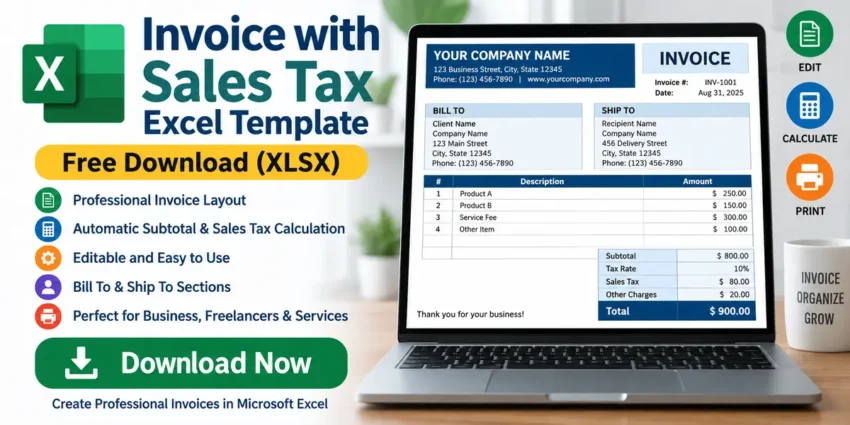
Our free Invoice with Sales Tax Excel Template provides a simple way to create invoices using Microsoft Excel. The spreadsheet includes dedicated sections for customer information, shipping details, item descriptions, subtotal, sales tax, other charges, and the final invoice total.
The template also contains built-in Excel formulas that automatically calculate the subtotal, sales tax, and total amount, helping reduce repetitive manual calculations.
Whether you run a small business, work as a freelancer, sell products, or simply need an editable invoice spreadsheet, this XLSX template provides a useful starting point.
Download Invoice with Sales Tax Excel Template
Editable Excel invoice template and customize it with your company and customer information.
File Format: XLSX
Template Type: Invoice with Sales Tax
Editable: Yes
Automatic Calculations: Yes
Recommended Software: Microsoft Excel or a compatible spreadsheet application
What Is an Invoice with Sales Tax?
An invoice is a document that a seller sends to a customer to provide details about goods or services and the amount payable.
When sales tax applies, the invoice may also show:
- Subtotal before tax
- Applicable tax rate
- Sales tax amount
- Other charges
- Final amount due
For example, suppose an invoice has a subtotal of $1,000 and an applicable sales tax rate of 5%.
The sales tax would be:
$1,000 × 5% = $50
The total would therefore be:
$1,000 + $50 = $1,050
The applicable tax rate depends on the relevant jurisdiction and transaction, so users should enter the correct rate for their circumstances.
What’s Included in This Excel Invoice Template?
The uploaded spreadsheet includes the essential sections needed to prepare a basic sales invoice.
Company Information
At the top of the template, you can replace the placeholders with your own company information.
You can enter details such as:
- Company name
- Street address
- City and ZIP/postal code
- Phone number
- Fax or other contact details
- Company website
Customizing this information helps make the invoice appropriate for your business.
Invoice Date
The spreadsheet includes a dedicated DATE field.
The template uses Excel’s TODAY() function, allowing Excel to populate the current date when the workbook recalculates.
You can replace the formula with a fixed date when necessary.
Invoice Number
A dedicated INVOICE # section allows you to assign a unique number to each invoice.
For example:
INV-0001
INV-0002
INV-2026-001
Using unique invoice numbers makes it easier to organize invoices and locate individual transactions later.
Bill To Section
The BILL TO section is designed for customer or client information.
You can enter:
- Customer name
- Company name
- Street address
- City and ZIP/postal code
- Phone number
This clearly identifies who is being billed.
Ship To Section
The template also includes a separate SHIP TO area.
This is useful when the customer’s billing address and shipping address are different.
For example, a company’s accounting office may receive the bill while the products are delivered to another location.
You can enter:
- Recipient name
- Company
- Shipping address
- City and ZIP/postal code
- Phone number
If no physical products are being shipped, you can customize this section according to your needs.
Add Products or Services
The main invoice table provides columns for:
SL. NO
Description
Amount
You can use these rows to list the products or services included in the invoice.
For example:
| SL. NO | Description | Amount |
|---|---|---|
| 1 | Website Design Service | $500 |
| 2 | Hosting Service | $100 |
| 3 | Technical Support | $150 |
The template provides multiple rows, allowing you to include several invoice items.
Automatic Subtotal Calculation
One of the most useful features of this Invoice with Sales Tax Excel Template is its automatic subtotal calculation.
The spreadsheet contains a formula that adds the amounts entered into the invoice item section.
This means you don’t have to manually calculate the subtotal every time you prepare an invoice.
For example:
Product A: $100
Product B: $250
Service C: $150
The spreadsheet can calculate:
Subtotal = $500
This can save time and reduce simple arithmetic errors.
Sales Tax Calculation
The template includes a dedicated Tax Rate field and a separate Sales Tax calculation.
You can enter the appropriate sales tax rate applicable to your transaction.
The spreadsheet then calculates sales tax based on the subtotal.
Conceptually:
Sales Tax = Subtotal × Tax Rate
For example:
Subtotal: $2,000
Tax Rate: 5%
Then:
Sales Tax = $100
Important Tax Note
The tax rate shown in a template should not automatically be assumed to be the correct rate for your business.
Tax requirements can differ depending on:
- Country
- State or province
- Local jurisdiction
- Product or service
- Customer location
- Business registration
- Transaction type
Always replace the example/default rate with the correct rate applicable to your transaction and seek appropriate tax guidance when necessary.
Other Charges
The spreadsheet includes an OTHER field.
This can be useful for additional applicable charges that aren’t included in the normal item amounts or sales tax.
Depending on your business, examples could include an applicable:
- Delivery charge
- Handling charge
- Service charge
- Other invoice adjustment
Make sure any additional charge is clearly described for your customer and permitted under the applicable terms and rules.
Automatic Invoice Total
The final TOTAL section combines the relevant amounts.
The template’s calculation follows the structure:
Total = Subtotal + Sales Tax + Other Charges
This gives the final invoice amount after the relevant figures have been entered.
How to Use the Invoice Excel Template
Step 1: Download the Excel File
Click the Download Invoice with Sales Tax Excel Template button.
Save the XLSX file to your computer.
Step 2: Open the Template
Open the spreadsheet using Microsoft Excel or another compatible application.
Step 3: Add Your Company Details
Replace placeholder information with your:
- Business name
- Address
- Phone number
- Website
- Other contact information
Step 4: Enter an Invoice Number
Assign a unique invoice number.
Keeping invoice numbers organized can make record management much easier.
Step 5: Add Customer Information
Complete the Bill To section with your customer’s details.
Complete Ship To as well when applicable.
Step 6: Add Products or Services
Enter each item or service in the invoice table.
Include an appropriate description and amount.
Step 7: Check the Subtotal
After entering all amounts, verify that the subtotal calculation is correct.
Step 8: Enter the Correct Tax Rate
Replace the tax-rate value with the rate applicable to the transaction.
Be especially careful here because tax rates and requirements vary.
Step 9: Add Other Charges
Enter additional applicable charges in the OTHER field, or leave it at zero when there are none.
Step 10: Verify the Final Total
Check the final total before sending the invoice to your customer.
Never rely on formulas without verifying that the source amounts, tax rate, and formulas are correct.
Why Use an Excel Invoice Template?
Excel provides several advantages for simple invoice creation.
Easy to Customize
You can change:
- Company details
- Customer information
- Invoice numbers
- Descriptions
- Amounts
- Tax rate
- Additional charges
- Fonts and formatting
Automatic Calculations
Formulas can reduce repetitive manual calculations.
Reusable
Once you’ve customized the spreadsheet with your company information, you can save it as your own master template.
For each new customer, create a new copy and change the invoice details.
Easy to Store
XLSX files can be organized by:
- Customer
- Month
- Financial year
- Invoice number
For example:
INV-2026-001-Customer-Name.xlsx
Who Can Use This Invoice Template?
The template may be useful for:
- Small businesses
- Freelancers
- Consultants
- Service providers
- Online businesses
- Contractors
- Retail businesses
- Accountants
- Students
However, invoice and tax requirements vary by jurisdiction and business type. Customize the template to meet your actual legal, tax, and accounting requirements.
Invoice Template vs Income Statement
An invoice and an income statement serve very different purposes.
| Invoice | Income Statement |
|---|---|
| Sent to a customer | Used for financial reporting |
| Shows a specific sale | Summarizes a reporting period |
| Includes amount payable | Includes total revenue |
| May include sales tax | Includes expenses |
| Identifies customer | Shows profit or loss |
| Transaction document | Financial statement |
After recording your business transactions, you can use our Free Income Statement Excel Template to organize revenue, expenses, and net income.
Invoice Template and Balance Sheet
Your Balance Sheet Excel Template is another relevant resource.
While an invoice records an individual transaction, a balance sheet provides information about a business’s financial position at a particular date.
You can also download our Free Balance Sheet Excel Template for organizing assets, liabilities, and equity.
This creates a strong internal structure:
Invoice Template → Income Statement → Balance Sheet
This is much more relevant for SEO than linking this article to unrelated software posts.
Tips for Creating Professional Invoices
Use Unique Invoice Numbers
Don’t use the same invoice number for multiple transactions.
Check Customer Details
Verify the customer’s name and billing information before sending an invoice.
Clearly Describe Products or Services
Avoid vague descriptions where possible.
A clear description helps customers understand exactly what they are being charged for.
Verify Tax Information
Make sure the tax rate and tax treatment are appropriate for the specific transaction.
Double-Check the Total
Review:
Subtotal → Tax → Other Charges → Total
before sending the invoice.
Keep Copies
Keep copies of invoices according to your business, accounting, tax, and record-retention requirements.
Frequently Asked Questions
Is this Invoice with Sales Tax Excel Template free?
Yes. You can offer the blank XLSX template as a free downloadable resource.
Does the Excel template calculate sales tax automatically?
Yes. The spreadsheet contains a formula that calculates sales tax based on the subtotal and tax rate entered in the template.
Does it calculate the subtotal automatically?
Yes. The template contains a formula that adds the item amounts to calculate the subtotal.
Does it calculate the final total?
Yes. The template calculates the final total using the subtotal, sales tax, and other charge fields.
Can I change the sales tax rate?
Yes. The tax-rate field can be changed. You should enter the correct tax rate applicable to your transaction.
Can I add my company name?
Yes. The company name, address, phone number, website, and other placeholder information can be customized.
Can I add customer information?
Yes. The template includes both Bill To and Ship To sections.
Can I use it for services?
Yes. The Description and Amount fields can be adapted for products or services.
Can I open it without Microsoft Excel?
Other spreadsheet applications may be able to open XLSX files, including LibreOffice Calc and Google Sheets. However, verify formulas and formatting after opening or importing the file into another application.
Download Free Invoice with Sales Tax Excel Template
If you need an editable invoice spreadsheet with automatic tax calculations, this Invoice with Sales Tax Excel Template provides a simple starting point.
Customize the company details, add your customer information, enter products or services, set the appropriate tax rate, and verify the final invoice total before use.