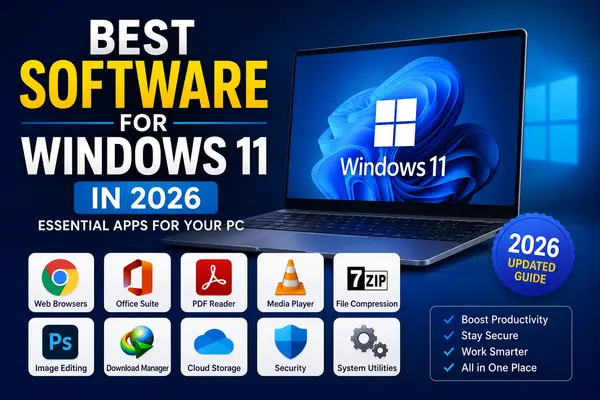
Looking for the best software for Windows 11? Whether you have just purchased a new PC or upgraded your existing computer, the right applications can make your Windows 11 experience more productive, secure, and enjoyable.
Windows 11 already includes several useful built-in applications, but you may still need additional software for browsing the web, creating documents, reading PDF files, watching videos, editing images, managing files, and performing other everyday tasks.
In this guide, we have listed some of the best software for Windows 11 in 2026, covering productivity, multimedia, security, file management, image editing, and other useful categories.
Note: Software requirements can vary by application. Always check the developer’s official system requirements before installing any software.
What Software Should You Install on Windows 11?
There is no single list of software that every Windows 11 user needs. The right applications depend on how you use your computer.
For most users, these software categories are worth considering:
- Web browsers
- Office and productivity software
- PDF readers
- Media players
- File compression tools
- Image editing software
- Download managers
- Cloud storage applications
- Security software
- System utilities
Let’s take a closer look at each category.
1. Web Browsers
A web browser is one of the first applications most people use on a Windows PC.
Windows 11 comes with Microsoft Edge, which provides web browsing, password management, synchronization, and other useful features.
Popular Web Browsers for Windows 11
Some popular choices include:
- Google Chrome
- Mozilla Firefox
- Microsoft Edge
- Opera
What to Consider When Choosing a Browser
When choosing a browser, consider:
- Performance
- Privacy features
- Extension support
- Synchronization
- Memory usage
- Security updates
If you regularly keep many tabs open, RAM usage can have a significant effect on browser performance.
2. Office and Productivity Software
Office and productivity applications are essential for many students, professionals, businesses, and home users.
MS Word, Excel, and PowerPoint are widely used for creating documents, spreadsheets, presentations, reports, and other types of work.
Microsoft Office For Windows 111
Microsoft Office is a popular choice for users who need desktop productivity applications.
Read our Microsoft Office 2024 for Windows guide.
Microsoft 365
Microsoft 365 is another option for users who want access to Office applications together with cloud-based services and ongoing updates.
Read our Microsoft 365 for Windows guide.
Free Office Alternatives
If you do not need all of the features available in Microsoft Office, you can also consider free office suites such as LibreOffice.
3. PDF Readers
PDF files are commonly used for business documents, manuals, invoices, forms, ebooks, and educational materials.
A PDF reader allows you to open and read PDF documents and may also provide features such as printing, searching, commenting, and form filling.
What to Look for in a PDF Reader
Before choosing a PDF application, consider whether you need:
- Basic PDF viewing
- Printing
- Text search
- Annotations
- Form filling
- PDF editing
- File conversion
If you only need to read PDF files, a lightweight PDF reader may be sufficient.
4. Media Players
If you regularly watch movies, videos, or listen to music on your Windows 11 PC, a good media player can be very useful.
VLC Media Player
VLC Media Player is a popular option because it supports many common audio and video formats.
A versatile media player can reduce the need to install multiple applications for different media file types.
Important Media Player Features
When choosing a media player, consider:
- Video format support
- Audio format support
- Subtitle support
- Hardware acceleration
- Playback controls
- Streaming support
5. File Compression Software
Compressed files are commonly used when downloading or sharing files online.
Common archive formats include:
- ZIP
- RAR
- 7Z
- TAR
A file compression utility allows you to create, extract, and manage compressed archives.
7-Zip
7-Zip is a popular free and open-source file archiver for Windows.
WinRAR
WinRAR is another well-known archive utility that supports multiple archive formats.
Choose an archive application based on the file formats and features you regularly need.
6. Image Editing Software
Image editing software can be useful for photographers, graphic designers, students, website owners, content creators, and everyday users.
You can use image editing applications to:
- Resize images
- Crop photos
- Adjust colors
- Remove unwanted elements
- Create graphics
- Edit photographs
Adobe Photoshop
Adobe Photoshop is a professional image editing application with advanced tools for photo editing and graphic design.
Some of its features include:
- Layers
- Masks
- Color correction
- Photo retouching
- Graphic design
- Image manipulation
Read our Adobe Photoshop for Windows guide.
Free Photoshop Alternatives
Users who do not require professional-level features can consider free alternatives such as GIMP.
7. Download Managers
A download manager can be useful for users who frequently download large files from the internet.
Depending on the application, features may include:
- Pause and resume
- Download scheduling
- Multiple downloads
- Browser integration
- Download organization
- Connection management
Internet Download Manager For Windows 11
Internet Download Manager, commonly known as IDM, is a popular download manager for Windows.
Read our Internet Download Manager Download and Installation Guide.
Always download software from legitimate and trusted sources.
8. Cloud Storage Software
Cloud storage applications allow you to store, synchronize, and access files across multiple devices.
Popular services include:
- Microsoft OneDrive
- Google Drive
- Dropbox
Benefits of Cloud Storage
Cloud storage can be useful for:
- File backup
- File synchronization
- Sharing documents
- Accessing files from different devices
- Keeping important files available online
Before choosing a cloud storage service, compare storage limits, pricing, synchronization features, and privacy policies.
9. Security Software
Security should be an important consideration when installing software on Windows 11.
Windows 11 includes Windows Security, which provides built-in protection features such as Microsoft Defender Antivirus and Windows Firewall.
For many users, Windows’ built-in security features may provide a solid starting point.
Software Security Tips
When downloading and installing software:
- Use trusted sources.
- Verify the software developer.
- Avoid suspicious installers.
- Keep Windows updated.
- Keep important software updated.
- Do not disable security features unnecessarily.
- Be careful with unknown executable files.
10. System Utilities
Windows 11 includes several built-in tools for managing storage, applications, and system settings.
Additional system utilities can be useful for specific tasks such as:
- File management
- Storage analysis
- System monitoring
- File searching
- Backup
- Hardware information
Be Careful With PC Optimization Software
Some applications claim to make a computer dramatically faster with a single click.
Be cautious with unrealistic performance claims.
Before installing a system utility, research the developer and understand exactly what the software does.
Best Software for Windows 11 at a Glance
| Category | Popular Options | Best For |
|---|---|---|
| Web Browser | Chrome, Firefox, Edge | Web browsing |
| Office | Microsoft Office, LibreOffice | Documents and spreadsheets |
| PDF Reader | Adobe Acrobat Reader | PDF documents |
| Media Player | VLC Media Player | Video and audio |
| Compression | 7-Zip, WinRAR | ZIP and archive files |
| Image Editing | Photoshop, GIMP | Photo editing |
| Download Manager | Internet Download Manager | File downloads |
| Cloud Storage | OneDrive, Google Drive | File synchronization |
| Security | Windows Security | PC protection |
| Utilities | Windows Tools | System management |
Note: The “best” software depends on your requirements, hardware, budget, and preferred features. The table above is intended as a starting point.
How to Choose the Right Software for Windows 11
Choosing software is not simply about finding the application with the most features. You should also consider compatibility, performance, security, licensing, and your actual requirements.
1. Check Windows Compatibility
Before installing software, make sure it supports your version of Windows.
Windows 11 has specific hardware requirements, but individual applications may require significantly more resources.
2. Check System Requirements
Always check the software’s minimum and recommended requirements.
Pay attention to:
- Processor
- RAM
- Storage
- Graphics
- Windows version
- Internet connection
This is particularly important for demanding applications such as video editors, 3D software, and professional graphics applications.
3. Check the Software Developer
Before downloading an application, verify who developed or publishes it.
Whenever possible, use the developer’s official website or a reputable software distribution platform.
4. Check the Software License
Software can be:
- Freeware
- Open source
- Commercial
- Subscription-based
- Trial software
Always understand the software’s license before using it.
5. Avoid Unnecessary Software
Installing too many applications can consume storage space and may add unnecessary background processes.
Install software because you need it, rather than installing every application you come across.
How to Download Software Safely
Downloading software from unknown sources can create unnecessary security and privacy risks.
Follow these basic practices:
- Identify the software developer.
- Use the official website whenever possible.
- Check the software version.
- Read the system requirements.
- Understand the software license.
- Be careful with advertisements and misleading download buttons.
- Read installation screens carefully.
- Avoid cracked or modified installers.
- Keep Windows and installed software updated.
A trusted source and a legitimate software license are important parts of a safer software installation process.
Best Software for a New Windows 11 PC
If you have just purchased a new Windows 11 computer, you do not need to install dozens of applications immediately.
For Everyday Users
A basic setup may include:
- Web browser
- PDF reader
- Office software
- Media player
- Archive utility
- Cloud storage
For Students
Students may benefit from:
- Office software
- PDF reader
- Web browser
- Note-taking software
- Cloud storage
For Professionals
Professionals may need:
- Microsoft Office or Microsoft 365
- PDF software
- Cloud storage
- Communication tools
- Security software
For Content Creators
Content creators may need:
- Image editing software
- Video editing software
- Audio software
- Cloud storage
- File compression software
The best approach is to install applications based on your actual workflow.
Frequently Asked Questions
What are the best software for Windows 11?
The best software depends on your needs. Popular categories include web browsers, office suites, PDF readers, media players, archive utilities, image editors, cloud storage applications, and security tools.
What software should I install on a new Windows 11 PC?
Start with applications you actually need, such as a web browser, PDF reader, office software, media player, archive utility, and cloud storage application.
What are the best free software for Windows 11?
Several useful applications are available for free, including VLC Media Player, 7-Zip, LibreOffice, GIMP, and other open-source or freeware applications.
Is Windows 11 software safe to download?
Software is generally safer to download when you use the developer’s official website or another reputable source. Avoid suspicious, modified, or unknown installers.
How do I know if software will run on my PC?
Check the software’s official system requirements and compare them with your computer’s processor, RAM, storage, graphics hardware, and Windows version.
How much RAM do I need for Windows 11 software?
Windows 11 has a minimum RAM requirement, but individual applications may require considerably more memory. The amount of RAM you need depends on the software you use and how many applications you run simultaneously.
Final Thoughts
The best software for Windows 11 in 2026 depends on how you use your computer. A student may need different applications from a graphic designer, office worker, developer, or casual home user.
Instead of installing every popular application, choose reliable software that matches your requirements, hardware, and budget.
Always check system requirements, use trusted download sources, understand software licensing, and keep your applications updated.
For more Windows software, software guides, system requirements, installation tutorials, and useful PC tips, explore more articles on FreeSoftwareDownload.info.
1 thought on “Best Software for Windows 11 in 2026 – Essential Apps for Your PC”