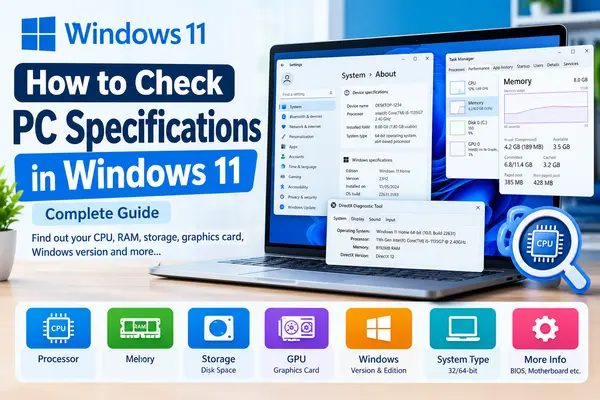
Want to know what hardware is inside your Windows 11 PC? Checking your computer specifications can help you find your processor, RAM, storage, graphics card, Windows version, system type, and other important hardware information.
Whether you are planning to install new software, upgrade your RAM, check gaming requirements, or troubleshoot a computer problem, knowing your PC specifications is extremely useful.
In this guide, we’ll show you how to check PC specifications in Windows 11 using several built-in Windows tools.
What PC Specifications Can You Check in Windows 11?
Depending on the method you use, you can find information such as:
- Processor (CPU)
- Installed RAM
- Windows edition and version
- System type
- Device name and model
- Storage capacity
- Available storage space
- Graphics card (GPU)
- DirectX version
- BIOS information
- Motherboard information
- System architecture
- Hardware and driver details
Let’s look at the easiest methods.
Method 1: Check PC Specifications from Windows Settings
The easiest way to check basic PC specifications in Windows 11 is through the Settings app.
Step 1: Open Windows Settings
Press Windows + I on your keyboard to open Settings.
You can also right-click the Start button and select Settings.
Step 2: Go to System > About
In Settings, select:
System → About
Scroll down to the Device specifications section.
Microsoft provides basic device information in this section, including the processor, installed RAM, and system type.
Step 3: Check Your Processor
Under Device specifications, look for Processor.
For example:
Intel(R) Core(TM) i3-1215U
or
AMD Ryzen 5 5600H
This tells you which CPU your computer uses.
Step 4: Check Installed RAM
Look for Installed RAM.
For example:
8.00 GB RAM
or
16.0 GB RAM
RAM is important when running multiple applications, editing photos and videos, gaming, and using demanding software.
Step 5: Check System Type
Look for System type.
Windows 11 is a 64-bit-only operating system, so a Windows 11 installation will be 64-bit.
Method 2: Check Windows Version and Edition
The same System → About page can show important Windows information.
Scroll down to Windows specifications.
Here you can find:
- Windows edition
- Version
- OS build
- Installation date
- Windows experience information
For example, your PC may show:
Edition: Windows 11 Home
Version: 25H2
OS Build: XXXXX
This information can be useful when troubleshooting Windows problems or checking software compatibility.
Method 3: Check Storage Capacity in Windows 11
If you want to know how much SSD or hard-drive space your computer has, use Windows Storage settings.
Go to:
Settings → System → Storage
Windows will show how storage is being used and how much space is available.
You can also see categories such as:
- Installed apps
- Temporary files
- Documents
- Pictures
- Videos
- Other files
- System files
If your PC has multiple drives, Windows also provides options to view storage usage on other drives.
SSD or HDD?
The Storage page tells you how much storage you have, but it may not always clearly identify whether the drive is an SSD or HDD.
For more detailed drive information, you can use Task Manager or other Windows system tools.
Method 4: Check CPU, RAM, GPU and Disk Using Task Manager
Task Manager is another useful built-in Windows tool for checking hardware information.
Step 1: Open Task Manager
Press:
Ctrl + Shift + Esc
This opens Task Manager.
If necessary, click More details.
Step 2: Open the Performance Tab
Select Performance from the left-hand menu.
You can see different hardware components, including:
- CPU
- Memory
- Disk
- Wi-Fi or Ethernet
- GPU
Check Your CPU
Select CPU to see information such as:
- Processor name
- CPU speed
- Number of cores
- Logical processors
- CPU utilization
Check Your RAM
Select Memory.
You can see:
- Total installed memory
- Memory currently in use
- Available memory
- Memory speed
- Number of memory slots used, where reported
Check Your Graphics Card
Select GPU.
This can show information about your graphics processor, including the GPU name and current utilization.
For example:
Intel UHD Graphics
or
NVIDIA GeForce RTX 4060
This is particularly useful when checking whether your PC meets the graphics requirements of a game or software application.
Method 5: Check Detailed PC Specifications Using System Information
If you want more detailed information than the Settings app provides, Windows 11 includes a built-in tool called System Information.
Microsoft’s System Information tool, also known as MSINFO32, provides a comprehensive view of hardware, system components, and the software environment.
Step 1: Open System Information
Press:
Windows + R
The Run window will appear.
Type:
msinfo32
Then press Enter.
You can also search for System Information from the Windows Search box.
Step 2: View System Summary
The System Summary section provides detailed information such as:
- OS Name
- Version
- System Manufacturer
- System Model
- Processor
- BIOS Version
- Installed Physical Memory
- System Type
- Windows directory
- Boot device
This is one of the best built-in methods for finding detailed PC specifications.
Hardware Resources
The Hardware Resources section provides additional hardware-related information.
Components
The Components section contains information about different hardware components and devices.
Software Environment
The Software Environment section provides information about Windows services, drivers, and other software-related components.
Method 6: Check Graphics Card and DirectX Information with DxDiag
If you want to check your graphics card and DirectX information, Windows includes the DirectX Diagnostic Tool, commonly called DxDiag.
Step 1: Open DxDiag
Press:
Windows + R
Type:
dxdiag
Then press Enter.
You can also type dxdiag in Windows Search.
Step 2: Check System Information
The System tab can show information such as:
- Operating system
- Processor
- Memory
- DirectX version
- System manufacturer
- System model
Microsoft notes that DxDiag can provide detailed information about DirectX components and installed drivers.
Step 3: Check Your Graphics Card
Select the Display tab.
Depending on your system, you can see information about:
- GPU name
- Display memory
- Driver information
- Display mode
- DirectX features
This is especially useful for checking whether your computer can handle graphics-intensive applications and games.
Method 7: Check PC Model and Manufacturer
If you want to know your laptop or desktop’s exact model, go to:
Settings → System → About
You can also open System Information and look for:
System Manufacturer
and
System Model
This information can be useful when looking for:
- RAM upgrades
- SSD upgrades
- Drivers
- BIOS updates
- Manufacturer support
- Compatible accessories
Method 8: Check Your PC’s Specifications Before Installing Software
Before installing demanding software, it is a good idea to compare your PC specifications with the software’s system requirements.
For example, if you want to install photo-editing software, check:
- CPU
- RAM
- GPU
- Storage
- Windows version
For gaming, GPU and RAM can be particularly important.
Always check the software developer’s official system requirements before installing demanding applications.
Method 9: Check if Your PC Meets Windows 11 Requirements
If you are using an older computer and want to check Windows 11 compatibility, Microsoft provides the PC Health Check app.
The app can provide information about your Windows device and help determine whether it meets Windows 11 requirements.
Microsoft’s current minimum Windows 11 requirements include:
- 1 GHz or faster processor with 2 or more cores and an approved CPU
- 4 GB RAM
- 64 GB or larger storage device
- Compatible DirectX 12 graphics with WDDM 2.0 driver
- HD display larger than 9 inches
- Compatible firmware with UEFI and Secure Boot capability
- TPM 2.0
These are minimum requirements; individual applications and features may require more powerful hardware.
Quick Comparison of Windows 11 PC Specification Tools
| Method | CPU | RAM | Storage | GPU | Windows Info | Detailed Info |
|---|---|---|---|---|---|---|
| Settings > About | Yes | Yes | No | No | Yes | Basic |
| Settings > Storage | No | No | Yes | No | No | Storage |
| Task Manager | Yes | Yes | Yes | Yes | Limited | Good |
| System Information | Yes | Yes | Yes | Yes | Yes | Excellent |
| DxDiag | Yes | Yes | Limited | Yes | Yes | Graphics-focused |
| PC Health Check | Yes | Yes | Yes | Yes | Yes | Compatibility |
Which Method Should You Use?
If you only need basic information, use:
Settings → System → About
If you want to check CPU, RAM, GPU, and disk performance:
Task Manager → Performance
If you need detailed hardware and system information:
System Information (msinfo32)
If you need graphics and DirectX information:
DxDiag
For Windows 11 compatibility:
PC Health Check
Frequently Asked Questions
How do I check my PC specs in Windows 11?
Go to Settings → System → About. You can see your processor, installed RAM, system type, device name, and Windows specifications.
How do I check RAM in Windows 11?
Open Settings → System → About to see installed RAM. You can also open Task Manager → Performance → Memory for more detailed memory information.
How do I check my processor in Windows 11?
Go to Settings → System → About and look under Device specifications → Processor.
How do I check my graphics card in Windows 11?
Open Task Manager → Performance → GPU. You can also use DxDiag and check the Display tab.
How do I check my SSD or hard drive in Windows 11?
Go to Settings → System → Storage to see storage capacity and usage. For additional drive information, you can use Task Manager or other built-in Windows tools.
How do I check my Windows 11 version?
Open Settings → System → About and look under Windows specifications.
Can I check all PC specifications without installing software?
Yes. Windows 11 includes several built-in tools, including Settings, Task Manager, System Information, and DxDiag.
Final Thoughts
Checking your PC specifications in Windows 11 is easy and does not require third-party software. The Settings → System → About page is the quickest option for basic information, while Task Manager, System Information, and DxDiag provide more detailed hardware information.
Before installing demanding software, upgrading your PC, or troubleshooting a hardware problem, checking your CPU, RAM, storage, GPU, and Windows version can help you make the right decision.
Find information about your Windows device (Microsoft )
2 thoughts on “How to Check PC Specifications in Windows 11 – Complete Guide”