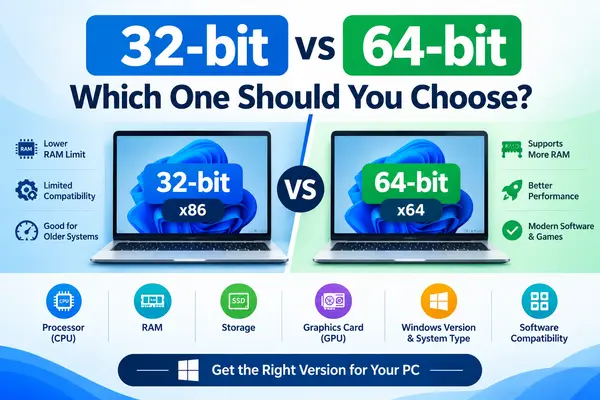
When downloading Windows software, you may have noticed options such as 32-bit (x86) and 64-bit (x64). But what do these terms actually mean, and which one should you choose?
The difference between 32-bit and 64-bit affects how your computer handles memory, how much RAM an operating system can use, and which applications you can install.
For modern computers, 64-bit is generally the better choice. In fact, Windows 11 is available only as a 64-bit operating system.
In this guide, we’ll explain the difference between 32-bit vs 64-bit, their advantages and disadvantages, software compatibility, RAM limitations, and how to check which version your PC is running.
What Does 32-bit and 64-bit Mean?
The terms 32-bit and 64-bit refer to the architecture of a computer’s processor and operating system.
A 64-bit processor can handle significantly more memory and larger amounts of data at once compared with a 32-bit architecture.
You may see these terms written as:
- 32-bit
- x86
- 64-bit
- x64
For most modern Intel and AMD PCs, x64 means 64-bit.
32-bit vs 64-bit: Quick Comparison
| Feature | 32-bit | 64-bit |
|---|---|---|
| Architecture | 32-bit | 64-bit |
| Common name | x86 | x64 |
| RAM support | Limited | Much higher |
| Modern PC support | Older systems | Modern systems |
| Windows 11 | Not available | Supported |
| Modern software | Increasingly limited | Widely supported |
| Large applications | More limited | Better support |
| Recommended for new PCs | No | Yes |
What Is a 32-bit Operating System?
A 32-bit operating system is designed around a 32-bit architecture.
Older computers commonly used 32-bit processors and operating systems. They were suitable for basic computing tasks such as:
- Web browsing
- Office applications
- Basic photo editing
- Older software
- Simple games
However, 32-bit systems have significant limitations compared with modern 64-bit systems.
32-bit RAM Limitation
One of the biggest disadvantages of 32-bit Windows is its limited ability to address memory.
A 32-bit version of Windows generally cannot make full use of larger amounts of RAM. This becomes an important limitation on computers with 4 GB or more of memory.
Microsoft notes that the benefits of 64-bit Windows become particularly noticeable when a computer has larger amounts of RAM, typically around 4 GB or more.
What Is a 64-bit Operating System?
A 64-bit operating system is designed to work with 64-bit processors.
Modern desktop and laptop computers overwhelmingly use 64-bit processors and operating systems.
A 64-bit system provides better support for:
- Large amounts of RAM
- Modern applications
- Modern games
- Professional software
- Video editing
- Photo editing
- Virtual machines
- Multitasking
For a modern PC, 64-bit Windows is normally the recommended option.
32-bit vs 64-bit: RAM Difference
RAM is one of the most important differences between 32-bit and 64-bit systems.
A 32-bit operating system has a much smaller address space, while a 64-bit operating system can address vastly more memory.
For example, if your computer has:
4 GB RAM
or
8 GB RAM
a 64-bit operating system is the appropriate choice.
This is especially important for users who regularly run multiple applications simultaneously.
Does 64-bit Use More RAM?
Yes, a 64-bit operating system and applications can sometimes use somewhat more memory because of larger data structures and addresses.
However, the advantages of 64-bit computing—especially better support for modern applications and larger amounts of RAM—generally outweigh this difference on modern computers.
32-bit vs 64-bit Performance
Is 64-bit faster than 32-bit?
Not necessarily in every situation.
The actual performance depends on:
- Processor
- RAM
- Storage
- Graphics hardware
- Software optimization
- Operating system
- Workload
However, 64-bit systems can provide advantages when applications need to work with large amounts of memory or perform demanding calculations.
For modern software and hardware, 64-bit is the standard.
32-bit vs 64-bit Software Compatibility
This is another important difference.
Can 64-bit Windows Run 32-bit Software?
Generally, yes.
64-bit versions of Windows can normally run many 32-bit Windows applications through Microsoft’s compatibility technology.
This means you can often install an older 32-bit application on a 64-bit Windows computer.
Can 32-bit Windows Run 64-bit Software?
No.
A 32-bit version of Windows cannot run software that requires a 64-bit operating system.
Therefore, if a software developer offers both versions, choosing the 64-bit version is generally preferable on a modern PC.
What Is x86 and x64?
You may see these terms when downloading software.
x86
x86 usually refers to the 32-bit version of Windows software.
For example:
Software Name x86
generally means the 32-bit version.
x64
x64 refers to the 64-bit version.
For example:
Software Name x64
means the 64-bit version.
So, in simple terms:
x86 = 32-bit
x64 = 64-bit
32-bit vs 64-bit for Windows 11
If you are using Windows 11, the choice is very simple.
Windows 11 Is 64-bit Only
Microsoft states that Windows 11 does not have a 32-bit version. Windows 11 installations are 64-bit.
Windows 11 also requires a compatible 64-bit processor or System on a Chip (SoC).
Therefore:
Windows 11 → 64-bit
You do not need to choose between 32-bit and 64-bit when installing Windows 11.
Why Does Windows 11 Require 64-bit?
Modern versions of Windows are designed for modern hardware.
A 64-bit architecture provides better support for:
- Modern processors
- Larger amounts of RAM
- Modern applications
- Advanced security features
- Modern hardware
- Demanding workloads
Windows 11’s minimum requirements include a compatible 64-bit processor, at least 4 GB RAM, and at least 64 GB of storage.
How to Check if Your Windows Is 32-bit or 64-bit
You can check your system architecture directly from Windows.
Step 1: Open Settings
Press:
Windows + I
to open Windows Settings.
Step 2: Go to About
Navigate to:
System → About
Step 3: Find System Type
Look under Device specifications.
Find:
System type
You may see something such as:
64-bit operating system, x64-based processor
This means your Windows installation is 64-bit and your processor supports x64.
Microsoft also recommends this Settings → System → About method for checking Windows architecture.
How to Check 32-bit or 64-bit Using System Information
You can also use the built-in System Information tool.
Step 1
Press:
Windows + R
Step 2
Type:
msinfo32
Step 3
Press Enter.
Look for:
System Type
You may see:
x64-based PC
This indicates a 64-bit-capable system.
How to Check Whether a Software Is 32-bit or 64-bit
Before downloading software, check the developer’s download page.
You may see options such as:
- Windows x86
- Windows x64
- 32-bit
- 64-bit
- ARM64
If you are using a normal modern Intel or AMD Windows 11 PC, you will usually want:
Windows x64 / 64-bit
If your computer uses a Windows-on-ARM device, the appropriate version may instead be ARM64, depending on the software.
Which One Should You Choose?
For most users, the answer is simple:
Choose 64-bit if:
- You have a modern PC
- You are using Windows 11
- Your computer has 4 GB or more RAM
- You use modern software
- You play modern games
- You edit photos or videos
- You use professional applications
- You are installing Windows on a new PC
Choose 32-bit only if:
A specific older computer or application requires it.
32-bit Windows is mainly relevant to older hardware and legacy software environments.
Is 64-bit Better Than 32-bit?
For modern computers, yes, 64-bit is generally the better choice.
It provides:
- Better support for large amounts of RAM
- Better compatibility with modern software
- Support for modern Windows versions
- Better support for demanding applications
- A more suitable platform for modern hardware
However, simply switching from 32-bit to 64-bit does not automatically make every program faster.
Can You Upgrade from 32-bit Windows to 64-bit Windows?
If you are currently running 32-bit Windows and your processor supports 64-bit, you can move to 64-bit Windows.
However, this is not a simple in-place upgrade.
Microsoft states that moving from 32-bit Windows to 64-bit Windows requires reformatting the hard drive, installing the 64-bit version, and reinstalling your applications.
Before Switching to 64-bit
Make sure you:
- Back up your important files.
- Check whether your processor supports 64-bit.
- Download the appropriate 64-bit Windows installation media.
- Make sure you have necessary device drivers.
- Make a list of software you need to reinstall.
- Perform a clean installation.
Important: Back up your important files before reinstalling Windows.
64-bit vs 32-bit: Pros and Cons
32-bit Advantages
- Compatible with some older hardware
- Can run legacy 32-bit applications
- Suitable for certain old systems
32-bit Disadvantages
- Limited memory addressing
- Not suitable for modern Windows 11
- Increasingly limited software support
- Not ideal for modern hardware
64-bit Advantages
- Supports much larger amounts of RAM
- Compatible with modern Windows
- Better suited to modern processors
- Supports modern applications
- Better choice for gaming and professional software
- Standard architecture for modern PCs
64-bit Disadvantages
- Some very old software may not work correctly
- Some legacy hardware may not have compatible drivers
- Can use slightly more memory in some situations
32-bit vs 64-bit: Which Is Better for Gaming?
For modern gaming PCs, 64-bit is the clear choice.
Modern games can require significant amounts of RAM and generally target 64-bit systems.
If you are building or buying a gaming PC, choose a 64-bit operating system and make sure the CPU, GPU, RAM, and storage meet the game’s requirements.
32-bit vs 64-bit for Photoshop and Other Professional Software
Modern professional applications such as photo and video editing software generally favor 64-bit systems.
Applications such as:
- Adobe Photoshop
- Adobe Premiere Pro
- Video editing software
- 3D applications
- CAD software
- Professional audio software
can benefit from the greater memory capacity available on 64-bit systems.
Always check the software developer’s official system requirements before downloading a specific version.
32-bit vs 64-bit: Frequently Asked Questions
Is Windows 11 32-bit or 64-bit?
Windows 11 is 64-bit only. Microsoft does not provide a 32-bit version of Windows 11.
Is 64-bit better than 32-bit?
For modern computers, yes. 64-bit provides better support for modern hardware, larger amounts of RAM, and current software.
Can 64-bit Windows run 32-bit programs?
Yes, many 32-bit Windows applications can run on 64-bit Windows.
Can 32-bit Windows run 64-bit programs?
No. A 32-bit version of Windows cannot run software that requires a 64-bit operating system.
Does 64-bit mean the computer has more RAM?
No. 64-bit refers to the processor and operating-system architecture. However, 64-bit Windows can support much larger amounts of memory than 32-bit Windows.
Is x86 32-bit or 64-bit?
In the context of Windows software downloads, x86 generally means 32-bit, while x64 means 64-bit.
Should I download x86 or x64 software?
If you have a modern Intel or AMD Windows 11 PC, choose x64 unless the software developer specifically recommends another version.
Can I install 64-bit Windows on a 32-bit processor?
No. A 32-bit processor cannot run a 64-bit version of Windows.
Final Verdict: 32-bit vs 64-bit
For almost every modern PC, 64-bit is the right choice.
If you are using Windows 11, there is no choice to make because Windows 11 is 64-bit only.
When downloading software for a modern Windows 11 computer, look for the 64-bit, x64, or x64-based version. Only choose a 32-bit version when you specifically need compatibility with older hardware or software.
In short:
Modern PC + Windows 11 = 64-bit / x64
Windows 11 system requirements
Before installing large applications, learn how to free up space on Windows 11.
2 thoughts on “32-bit vs 64-bit: Which One Should You Choose?”