Running out of storage space on your Windows 11 PC can be frustrating. A nearly full drive can make it difficult to install applications, download files, or install Windows updates.
Fortunately, Windows 11 includes several built-in tools that can help you free up disk space safely. You can remove unnecessary temporary files, uninstall unused applications, clean up system files, move large personal files, and configure Storage Sense to automatically manage storage.
In this guide, we’ll show you how to free up space on Windows 11 using simple and safe methods.
How to Check Available Storage Space on Windows 11
Before deleting anything, it is a good idea to check how much storage space is available on your PC.
Step 1: Open File Explorer
Press:
Windows + E
or click the File Explorer icon on the taskbar.
Step 2: Open This PC
Click This PC from the left-side menu.
Under Devices and drives, you can see how much space is available on your drives.
You can also get a more detailed breakdown by going to:
Settings → System → Storage
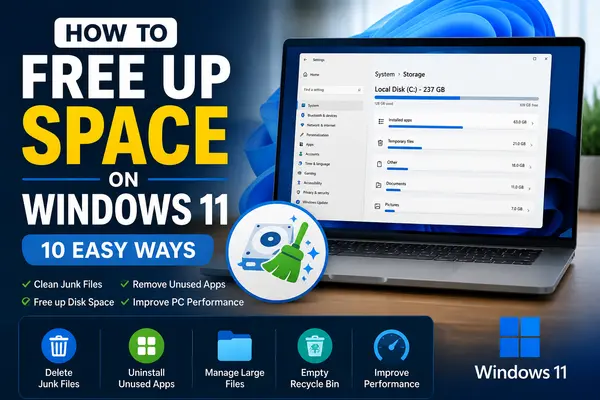
Windows 11’s Storage settings show how your disk space is being used across categories such as installed apps, temporary files, and system data.
1. Use Storage Sense to Free Up Space
One of the easiest ways to free up storage on Windows 11 is to use Storage Sense.
Storage Sense is a built-in Windows feature that can automatically remove unnecessary files, including temporary files and items in the Recycle Bin.
How to Turn On Storage Sense
- Open Settings.
- Select System.
- Click Storage.
- Find Storage Sense.
- Turn it On.
You can also open Storage Sense to configure how frequently Windows should clean temporary files.
Important Note
Storage Sense primarily manages the system drive, usually the C: drive. It does not automatically manage every drive connected to your computer.
2. Use Cleanup Recommendations
Windows 11 provides another useful feature called Cleanup recommendations.
It can help identify files and applications that may be taking up unnecessary space.
How to Use Cleanup Recommendations
Go to:
Settings → System → Storage → Cleanup recommendations
Windows can show categories such as:
- Temporary files
- Large or unused files
- Files synced to the cloud
- Unused apps
Review the recommendations carefully and select Clean up for the items you want to remove.
Why This Method Is Useful
Instead of manually searching through hundreds of files, Windows provides suggestions based on your storage usage.
3. Delete Temporary Files
Temporary files can accumulate over time as you use Windows and different applications.
You can review temporary files from:
Settings → System → Storage → Temporary files
Windows will display different categories of files that can potentially be removed.
Before You Delete Anything
Review the categories carefully.
Do not select files if you are unsure what they contain or whether you still need them.
Once you have reviewed the list, select the appropriate items and choose the option to remove them.
4. Empty the Recycle Bin
When you delete a file normally, Windows usually moves it to the Recycle Bin instead of immediately removing it.
Those files can continue using storage space until the Recycle Bin is emptied.
How to Empty the Recycle Bin
- Find Recycle Bin on your desktop.
- Right-click it.
- Select Empty Recycle Bin.
- Confirm the action.
Important
Make sure you do not need any of the files before emptying the Recycle Bin.
Microsoft also recommends emptying the Recycle Bin after deleting unwanted personal files if you want the storage space to be fully reclaimed.
5. Delete or Move Large Personal Files
Large personal files are often one of the biggest reasons a PC runs out of storage.
Common examples include:
- Videos
- Movies
- Photos
- Music
- ISO files
- ZIP/RAR archives
- Large documents
- Old installers
How to Find Large Files
Open File Explorer and check folders such as:
- Downloads
- Videos
- Pictures
- Documents
- Desktop
Change the folder view to Details, then sort the files by Size.
This makes it easier to identify large files that you no longer need.
Microsoft specifically recommends checking folders such as Videos, Music, Pictures, and Downloads because they can contain large personal files.
Move Files Instead of Deleting Them
If you want to keep large files but don’t need them on your PC all the time, move them to:
- External HDD
- External SSD
- USB drive
- SD card
- Cloud storage
This allows you to keep the files while freeing up space on your internal drive.
6. Uninstall Apps You Don’t Use
Unused applications can take up significant storage space.
Windows 11 allows you to review installed applications and remove programs you no longer need.
How to Uninstall Apps
- Open Settings.
- Go to Apps.
- Select Installed apps.
- Find an application you no longer use.
- Click the three-dot menu.
- Select Uninstall.
- Follow the instructions.
Before uninstalling an application, make sure you don’t need it.
Some programs may also store important user data, so check the application before removing it.
7. Clean Up Previous Windows Installation
If you recently upgraded Windows, your PC may contain a Previous Windows Installation or Windows.old folder.
This can take up a considerable amount of storage.
Windows provides an option to remove the previous installation through storage cleanup tools.
How to Remove Previous Windows Installation
Go to:
Settings → System → Storage → Cleanup recommendations
Look for:
Previous Windows installation(s)
Review it carefully before removing it.
Important Warning
Do not delete the previous Windows installation if you think you may need to return to your previous Windows version.
Microsoft notes that deleting the previous installation removes the ability to go back to the previous Windows version.
8. Use Disk Cleanup
Windows also includes the traditional Disk Cleanup utility.
Although newer Windows 11 storage tools are often easier to use, Disk Cleanup can still help remove temporary and system files.
How to Open Disk Cleanup
- Press the Windows key.
- Type Disk Cleanup.
- Open the application.
- Select the drive you want to clean.
- Click OK.
- Select the file categories you want to remove.
- Click OK.
- Confirm the deletion.
You can also select Clean up system files to look for additional system files that can be removed.
Be Careful
Review the file categories before deleting them, especially system-related files.
9. Move New Files to Another Drive
If your PC has multiple drives, you can choose where new content is saved.
For example, if your C: drive is nearly full but another drive has plenty of free space, you can change the default save location.
Go to:
Settings → System → Storage → Advanced storage settings → Where new content is saved
You can then choose a different drive for different types of new content.
Microsoft provides this option specifically to help prevent storage problems on a drive that is running low on space.
10. Use OneDrive Files On-Demand
If you use OneDrive, Files On-Demand can help reduce the amount of local storage used by cloud files.
With Files On-Demand, some files can remain available in the cloud without requiring the full file to occupy local disk space.
You can still see the files in File Explorer and download them when needed.
Microsoft explains that online-only files can help save local storage while keeping the files accessible through OneDrive.
Bonus: Find What’s Taking Up the Most Space
Windows 11’s Storage settings provide a useful overview of disk usage.
Go to:
Settings → System → Storage
You can see categories such as:
- Installed apps
- Temporary files
- System & reserved
- Documents
- Pictures
- Videos
- Other files
This can help you identify where most of your storage is being used.
What Files Should You Delete?
If you are trying to free up space on Windows 11, start with files you can easily identify.
Usually Safe to Review
- Temporary files
- Unwanted downloads
- Old installers
- Unused applications
- Files in the Recycle Bin
- Large personal files you no longer need
- Old files you have safely backed up elsewhere
Be Careful With
- Windows system files
- Application data
- Files you don’t recognize
- Important documents
- Photos and videos without backups
- Previous Windows installations
When in doubt, don’t delete the file until you know what it is.
How Much Free Space Should You Keep on Windows 11?
There is no single amount of free space that is ideal for every computer.
However, you should avoid allowing your system drive to remain almost completely full.
Windows needs available storage for:
- Updates
- Temporary files
- Applications
- Caches
- System operations
A drive with very little free space can also make it more difficult to install Windows updates. Microsoft notes that insufficient storage can prevent updates from installing successfully.
Does Freeing Up Disk Space Make Windows 11 Faster?
Freeing up storage can help when your drive is extremely full, particularly if low storage is causing problems with updates or normal system operations.
However, deleting files does not automatically make every computer dramatically faster.
If your PC is slow even when you have plenty of free storage, other factors may be responsible, such as:
- Limited RAM
- An older processor
- Too many startup applications
- Background processes
- Malware
- An older HDD
Therefore, disk cleanup should be considered one part of general PC maintenance.
How to Prevent Windows 11 From Running Out of Storage
After freeing up space, you can take a few steps to prevent the problem from returning.
Keep Storage Sense Enabled
Storage Sense can automatically manage certain unnecessary files according to your settings.
Clean Your Downloads Folder
The Downloads folder can become very large over time.
Regularly review old installers, ZIP files, videos, and other downloads.
Store Large Files Elsewhere
Consider using an external drive or cloud storage for large files you don’t frequently use.
Uninstall Unused Software
Remove applications that you no longer use.
Monitor Storage Regularly
Check:
Settings → System → Storage
every few weeks or whenever you receive a low-storage warning.
Frequently Asked Questions
How do I free up space on Windows 11?
You can free up space by using Storage Sense, Cleanup recommendations, deleting temporary files, emptying the Recycle Bin, uninstalling unused applications, and moving large personal files to another drive or cloud storage.
How do I free up C drive space in Windows 11?
Open Settings → System → Storage and review Temporary files, Cleanup recommendations, Installed apps, and other storage categories. You can also use Disk Cleanup to remove appropriate system files.
Does Windows 11 have a built-in disk cleanup tool?
Yes. Windows 11 includes Storage Sense, Cleanup recommendations, and the Disk Cleanup utility for managing unnecessary files and storage.
Is it safe to delete temporary files in Windows 11?
Windows provides temporary-file cleanup options through Storage settings. However, you should review the categories before removing files and avoid deleting files you don’t recognize manually.
How do I delete Windows.old in Windows 11?
You can remove the previous Windows installation through Settings → System → Storage → Cleanup recommendations when the option is available. Be aware that removing it eliminates the ability to return to the previous Windows installation.
Why is my C drive full even after deleting files?
Storage may still be used by installed applications, temporary files, system files, cloud files stored locally, the Recycle Bin, or large files in folders such as Downloads. Check Settings → System → Storage to identify the largest categories.
Final Thoughts
Running out of storage space doesn’t necessarily mean you need a new SSD immediately. Windows 11 provides several built-in tools that can help you free up disk space safely.
Start by checking Settings → System → Storage, then use Storage Sense, Cleanup recommendations, temporary-file cleanup, and application management. After that, review large personal files and move files you want to keep to external or cloud storage.
Most importantly, don’t delete system files manually unless you know exactly what they are. A careful cleanup is safer than deleting files randomly.
Keeping your Windows 11 storage under control can make it easier to install applications, download files, and receive Windows updates.
For more Windows 11 guides, software tutorials, PC tips, and software-related articles, visit FreeSoftwareDownload.info.
- free up space on Windows 11
- how to free disk space on Windows 11
- free up storage Windows 11
- how to clean up Windows 11
- Windows 11 disk cleanup
- Windows 11 storage cleanup
- how to delete temporary files Windows 11
- how to free up C drive space
- Windows 11 Storage Sense
- remove unnecessary files Windows 11
2 thoughts on “How to Free Up Space on Windows 11 – 10 Easy Ways”