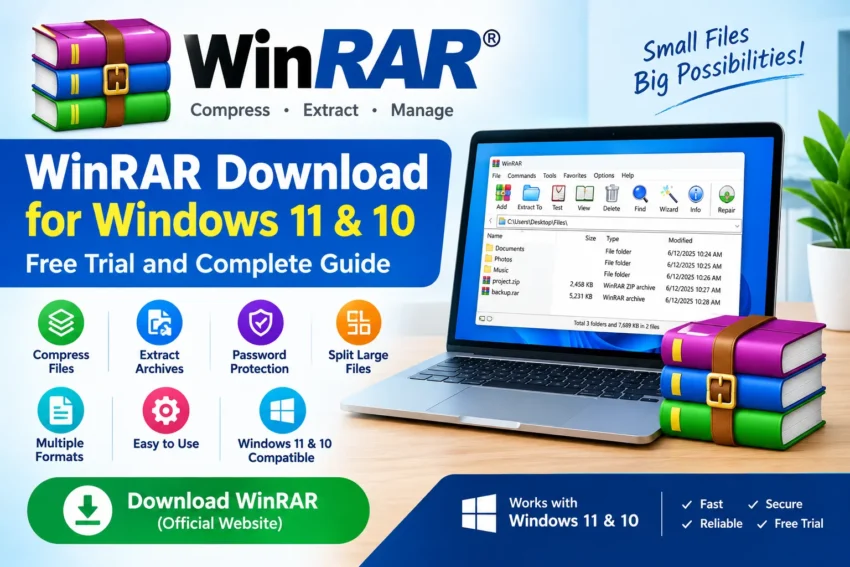
If you frequently download software, games, documents, or large files from the internet, you have probably encountered RAR or ZIP files. These files are compressed archives that can contain one or multiple files and folders.
WinRAR is one of the most popular file compression and archive management applications for Windows. It can create RAR and ZIP archives, extract many common archive formats, encrypt files with passwords, split large archives into multiple parts, and perform several other useful tasks.
In this guide, we’ll explain everything you need to know about WinRAR Download, including its features, installation process, how to extract files, how to compress files, password protection, and whether WinRAR works with Windows 11.
What Is WinRAR?
WinRAR is a file compression and archive management utility developed and distributed by win.rar GmbH / RARLAB.
Its primary purpose is to compress multiple files into a single archive, making them easier to store, share, or transfer.
WinRAR’s native archive format is RAR, although the software can also work with ZIP and many other archive formats.
For example, if you have 20 photos that you want to send to someone, you can put them into one RAR or ZIP archive instead of sending 20 individual files.
What Can You Do With WinRAR?
WinRAR provides several useful features for everyday Windows users.
You can use it to:
- Compress files and folders
- Extract RAR files
- Extract ZIP files
- Create RAR archives
- Create ZIP archives
- Protect archives with passwords
- Encrypt sensitive files
- Split large archives into smaller parts
- Create self-extracting archives
- Repair certain damaged archives
- Create multi-volume archives
- Manage compressed files
WinRAR also supports numerous archive formats for extraction, including RAR, ZIP, 7-Zip, TAR, GZip, ISO, and others.
WinRAR Features
1. RAR and ZIP Support
One of WinRAR’s main advantages is its support for both RAR and ZIP archives.
You can create your own RAR or ZIP files and extract archives downloaded from the internet.
This makes WinRAR useful for everyday file management.
2. High Compression
WinRAR is designed to reduce the size of files and folders while keeping the original data intact.
The amount of compression depends heavily on the type of files.
For example, text documents may compress considerably, while already-compressed files such as JPEG images or MP4 videos may show much smaller size reductions.
3. Password Protection
WinRAR can protect archives using encryption.
Its official feature documentation lists AES-256 encryption for protecting archived data.
This can be useful when sending sensitive documents or storing private files.
How to Create a Password-Protected Archive
- Select the files or folder.
- Right-click the selection.
- Choose Add to archive.
- Click Set password.
- Enter your password.
- Confirm the password.
- Click OK.
Keep your password somewhere safe. If you lose the password, recovering encrypted archive contents may not be possible.
How to Download WinRAR for Windows
For security, we recommend downloading WinRAR from the official RARLAB/WinRAR website.
The official download page currently lists WinRAR 7.23 English 64-bit for Windows as the latest stable English version.
Official WinRAR Download
Download WinRAR from the Official WebsiteThe official download page also provides localized versions and architecture options.
How to Install WinRAR on Windows 11
Installing WinRAR is straightforward.
Step 1: Download the Installer
Download the appropriate WinRAR version from the official website.
For most modern Windows 11 computers, the 64-bit version is appropriate.
Step 2: Run the Installer
After downloading the setup file, open it.
Windows may ask for permission through User Account Control.
Select Yes to continue.
Step 3: Choose Installation Options
The WinRAR installer will show installation and file-association options.
You can generally keep the default settings unless you have a specific reason to change them.
Step 4: Complete Installation
Click Install and wait for the installation to finish.
Once installation is complete, WinRAR will be available on your computer.
How to Extract a RAR File Using WinRAR
One of the most common reasons people install WinRAR is to open RAR files.
Step 1
Find the .rar file on your computer.
Step 2
Double-click the file.
WinRAR should open the archive and display its contents.
Step 3
Select the files you want to extract.
Step 4
Click Extract To.
Step 5
Select the destination folder.
Step 6
Click OK.
The files will be extracted to the selected location.
The official WinRAR documentation describes the same basic process: open the RAR archive, choose Extract To, select the destination, and confirm.
How to Extract a ZIP File Using WinRAR
WinRAR can also open ZIP archives.
To extract a ZIP file:
- Right-click the ZIP file.
- Select the WinRAR extraction option.
- Choose the destination.
- Extract the files.
You can also open the ZIP file directly with WinRAR.
How to Compress Files With WinRAR
You can use WinRAR to combine multiple files into a single compressed archive.
Step 1
Select the files or folder you want to compress.
Step 2
Right-click the selection.
Step 3
Select:
Add to archive…
Step 4
Choose the archive format.
You can choose RAR or ZIP, depending on your requirements.
Step 5
Choose the compression settings.
Step 6
Click OK.
WinRAR will create the archive in the selected location.
RAR vs ZIP: Which Should You Choose?
Both RAR and ZIP are widely used archive formats.
RAR
RAR is WinRAR’s native archive format and offers advanced features such as recovery records, encryption, and multi-volume archives.
ZIP
ZIP is an extremely common archive format with broad compatibility across operating systems and applications.
Which Is Better?
If you are sending files to someone who may not have WinRAR installed, ZIP can sometimes be more convenient because many operating systems can open ZIP archives without additional software.
If you want WinRAR-specific features and compression options, RAR is an excellent choice.
How to Split a Large File With WinRAR
WinRAR can split a large archive into multiple smaller volumes.
This can be useful when:
- Uploading files with size limits
- Sending large files
- Storing archives on smaller storage devices
- Splitting backups into manageable parts
When creating an archive, you can specify the desired volume size.
For example, a large archive could be divided into several smaller parts.
How to Repair a Damaged RAR Archive
WinRAR includes archive recovery features designed to help recover data from certain damaged archives.
However, recovery is not guaranteed.
If an archive is severely corrupted and does not contain sufficient recovery information, some or all of its contents may be unrecoverable.
For important files, keeping a separate backup is always recommended.
Is WinRAR Free?
This is an important question.
WinRAR is not permanently free commercial software.
The official WinRAR FAQ states that the software can be used free for a 40-day trial period, after which a license must be purchased to continue using it.
So, you should not advertise WinRAR on your website as:
❌ “WinRAR Full Version Free Lifetime”
or
❌ “WinRAR Activated Version”
Instead, use accurate wording such as:
✅ WinRAR Free Trial
This is especially important for your software-download website because misleading claims can reduce user trust.
Is WinRAR Safe?
WinRAR itself is legitimate software published by win.rar GmbH / RARLAB.
However, you should always download software from the official publisher or a trusted source.
The official WinRAR site recommends downloading the latest version from its website. It is also important to keep WinRAR updated. The latest stable release, WinRAR 7.23, was released on June 30, 2026, and included security fixes.
Important Safety Tip
Never assume that a RAR or ZIP archive is safe simply because it opens successfully.
An archive can contain:
- EXE files
- Scripts
- Malware
- Potentially unwanted software
- Malicious documents
Only extract and open files from sources you trust, and keep your antivirus software enabled.
Does WinRAR Work on Windows 11?
Yes.
WinRAR officially supports Windows 11. RARLAB’s Windows 11 support statement confirms compatibility, including new Windows 11 installations and in-place upgrades.
The official product page currently lists compatibility with:
- Windows 11
- Windows 10
- Windows 8
- Windows 7
For a modern Windows 11 PC, the 64-bit WinRAR version is generally the appropriate choice.
WinRAR 7.23 vs WinRAR 7.30 Beta
At the time of writing, WinRAR 7.23 is the latest stable final release, while WinRAR 7.30 Beta 1 is a test release.
For normal users, we recommend the stable final version rather than a beta version.
Beta versions may contain new features but can also have bugs or unfinished functionality.
WinRAR System Requirements
WinRAR is relatively lightweight compared with many modern applications.
The official product page lists support for Windows 11, Windows 10, Windows 8, and Windows 7.
Because archive compression can use significant CPU resources, the actual compression speed will depend on your computer’s processor, RAM, storage, and the files being compressed.
WinRAR vs 7-Zip
WinRAR isn’t the only compression tool available for Windows.
Another popular option is 7-Zip.
WinRAR
- Excellent RAR support
- RAR and ZIP creation
- AES-256 encryption
- Recovery features
- Easy Windows integration
- Large archive support
7-Zip
- Free and open-source
- Strong 7z compression
- Supports many archive formats
- Lightweight
Both are useful applications.
If you specifically need to create RAR archives, WinRAR is the natural choice.
Frequently Asked Questions
What is WinRAR used for?
WinRAR is used to compress, extract, encrypt, organize, and manage archive files such as RAR and ZIP.
Is WinRAR free?
WinRAR provides a 40-day free trial. After the trial period, a license is required for continued use according to its official EULA.
Is WinRAR available for Windows 11?
Yes. WinRAR officially supports Windows 11.
Can WinRAR open ZIP files?
Yes. WinRAR can create and extract ZIP archives as well as work with many other archive formats.
Is WinRAR 64-bit?
The current Windows download includes a 64-bit version, and the official download page currently lists WinRAR 7.23 English 64 bit.
Can WinRAR create ZIP files?
Yes. WinRAR supports creating both RAR and ZIP archives.
Can WinRAR protect files with a password?
Yes. WinRAR supports password protection and AES-256 encryption.
Final Verdict
WinRAR remains a useful archive management tool for Windows users.
It provides an easy way to compress files, extract RAR and ZIP archives, create password-protected archives, split large archives, and manage compressed data.
If you regularly download or share compressed files, having WinRAR installed can make file management much easier.
For Windows 11 users, WinRAR is officially supported, and the latest stable English 64-bit release is WinRAR 7.23 as of this article’s publication.
Download WinRAR
Official WinRAR Download PageTip: Always download the stable version from the official WinRAR/RARLAB website and keep the application updated for the latest security fixes.